Plugins: make Larvyn yours, with nothing you didn’t allow
Larvyn v0.1.0-beta.10 adds plugins: ⌘K commands, stack items and sidebar views, with every permission checked by Larvyn and each command confirmed.
 Ivan Mercedes··4 min read
Every Laravel app has a few tools that aren’t Laravel: a mail catcher, a queue dashboard, a script your team runs ten times a day. Until now, Larvyn only knew about the ones we built in. Starting with Larvyn v0.1.0-beta.10, you can add the rest yourself, with plugins.
A plugin is a folder with a larvyn.json and, if it has a screen, some HTML. No build step and no SDK to install. And because a plugin runs on your machine, next to your projects and your .env, we designed the permissions first: a plugin can only do what you allowed, and Larvyn checks every permission itself, not the plugin.
What a plugin can add
Plugins can contribute three things:
- Commands in ⌘K, under Plugins, such as Horizon: restart workers. They run in a project terminal, where you can watch their output.
- Stack items in the sidebar’s Stack, such as Mailpit. They get the same toggle, Output and restart as Larvyn’s own items.
- Views in the sidebar, under Plugins, such as a Mail inbox. Each one runs in a sandboxed frame. A view’s buttons can run the plugin’s commands and Artisan commands, and start, restart or stop the project’s services.
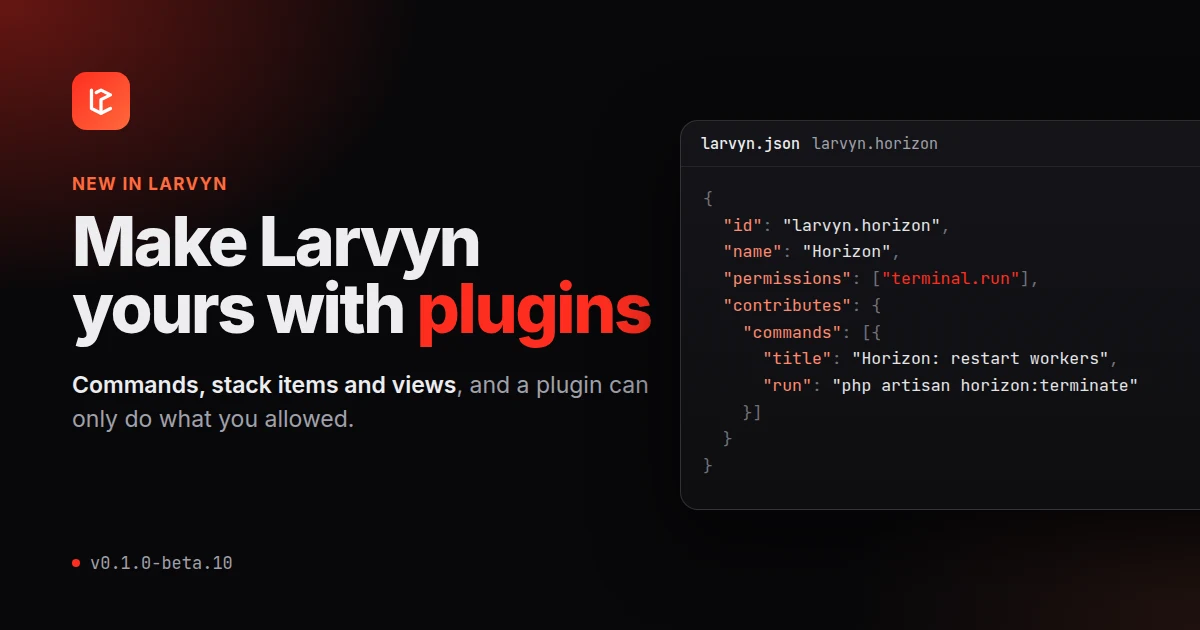
Here is a plugin that adds ⌘K commands for Horizon. It needs nothing but this file (the real one has two more commands, for status and continue):
{
  "apiVersion": 1,
  "id": "larvyn.horizon",
  "name": "Horizon",
  "version": "0.1.0",
  "larvyn": ">=0.1.0",
  "permissions": ["terminal.run"],
  "contributes": {
    "commands": [
      {
        "id": "restart",
        "title": "Horizon: restart workers",
        "run": "php artisan horizon:terminate"
      },
      {
        "id": "pause",
        "title": "Horizon: pause",
        "run": "php artisan horizon:pause"
      }
    ]
  }
}
Installing and managing plugins
Everything lives in Settings → Plugins:
- Install from folder shows exactly what the plugin may do before anything is installed, with the sensitive permissions in red.
- Install .zip installs a plugin someone shared with you. The archive is unpacked safely: no paths outside it, no links, and size limits that a “zip bomb” can’t get around.
- Each plugin has an on/off toggle, Export, which saves a
.zipto share, and Uninstall. - A second toggle, labelled with the open project’s name, turns a plugin off in that project only. It stays on everywhere else, and whatever it was running in that project stops.
Some plugins need a program you may not have yet. The Mailpit plugin needs mailpit, for example. When it’s missing, the plugin’s row says so and offers the install command for your OS. The command runs in a terminal you can watch, and only after you confirm it.
A plugin only does what you allowed
Plugins are code from someone else running next to your projects, so the rules are strict, and Larvyn enforces all of them:
- Permissions are declared up front. Running commands, reading
.env, using the network: each is a permission inlarvyn.json, and you see the list before you install. The sensitive ones are shown in red. - Every command is confirmed. The first time a plugin wants to run a command, Larvyn shows you the exact command line and asks. If the plugin later changes it, Larvyn asks again. A view can only run commands listed in its plugin’s
larvyn.json, and each new Artisan command line is confirmed once. - Views are sandboxed. They can’t reach Larvyn’s page, your files or the internet. They ask Larvyn instead, and Larvyn only fetches from the hosts the plugin listed. A view can still load its own CSS, JavaScript, images and fonts.
.envaccess is per key. A plugin can be allowed to read and change only specific keys, such asMAIL_MAILER, and never sees the others. Larvyn backs up.envbefore each change.- Plugins stay in their lane. A view can’t control another plugin’s stack items.
- Updates can’t sneak in new powers. An update that asks for a new permission stays off until you approve it.
- Off means off. Turning a plugin off stops everything it runs.
Three plugins to start with
Three example plugins are on GitHub in larvyn/plugin-examples, along with the manifest reference. Larvyn also gives every view a stylesheet that makes it look like the rest of the app.
The three examples:
- Mailpit runs Mailpit in the stack and shows its inbox in the sidebar. Its Settings point your app’s mail at Mailpit in one click, which matters because Laravel sends mail to the log by default. It’s also the example of the permission model at work: it can fetch only from
localhost:8025, and it can touch onlyMAIL_MAILER,MAIL_HOSTandMAIL_PORTin your.env. - Horizon is the manifest above: ⌘K commands to restart, pause, continue and check Horizon.
- Hello is the smallest plugin with a view. Copy it when you write your own.
Write your own
A view is a web page, so you can write it however you like. To start with Vite and TypeScript, copy plugin-starter. It has a typed client for everything a view can ask Larvyn, and npm run dev previews the view in a browser with sample data, so you don’t have to reload Larvyn on every change.
While you work on a plugin, you can link its folder into Larvyn’s plugins folder instead of installing a copy, and click Refresh to pick up your changes. When it’s ready, Export turns it into a .zip anyone can install.
What’s next
This is the first release with plugins, so the plugin format may still change. If you write one, we’d love to see it, and to hear what a plugin couldn’t do that you wanted it to.
Next up is a marketplace, for finding and installing plugins from inside Larvyn.
Get started
- Update Larvyn to v0.1.0-beta.10 from inside the app, or install it from the download section.
- Download the example plugins.
- Open Settings → Plugins → Install from folder and pick one, such as
larvyn.horizon. - Press ⌘K and type Horizon.
Found a bug? Use Report a bug at the top of the app.