Larvyn beta.13: review your agents’ code, bring your own agents
Larvyn v0.1.0-beta.13: review an agent’s changes next to its terminal, add your own agents, paste screenshots into agents, and lighter terminals.
 Ivan Mercedes··4 min read
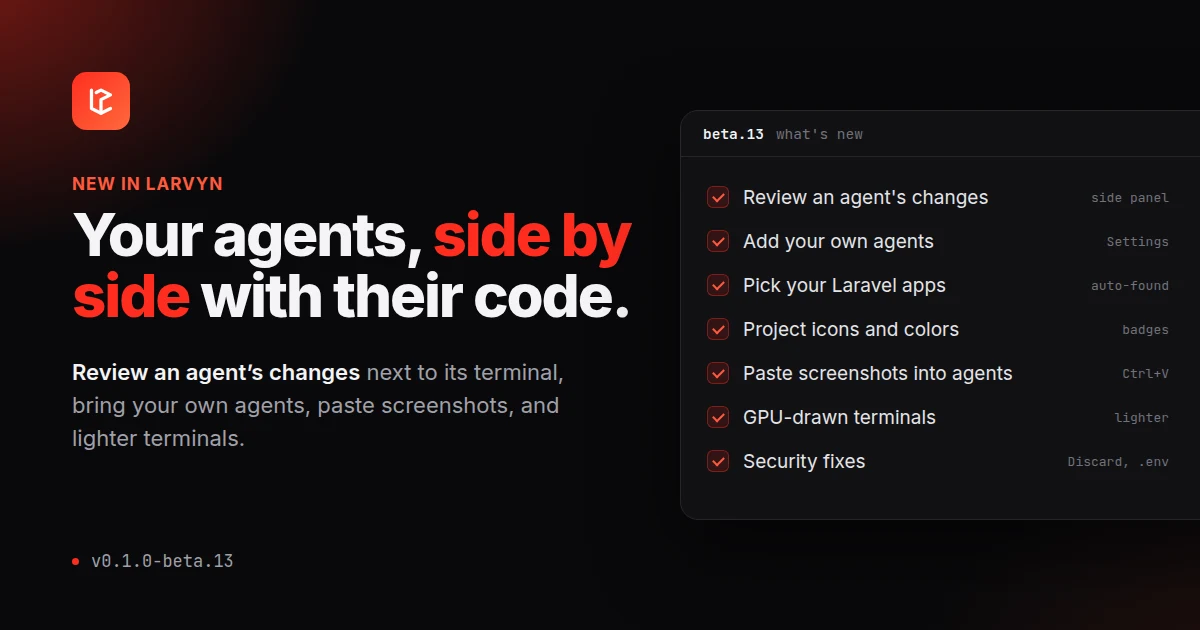
Larvyn v0.1.0-beta.13 is out. It’s mostly about agents: you can now review what an agent changed without leaving its terminal, add agents of your own, and paste a screenshot into them. Terminals got lighter too, and opening a project got a lot faster.
Review an agent’s changes, next to its terminal
Click Review changes on an agent and its diff opens in a panel to the right of the Agents view. The agent keeps working on the left, and you read its code on the right.
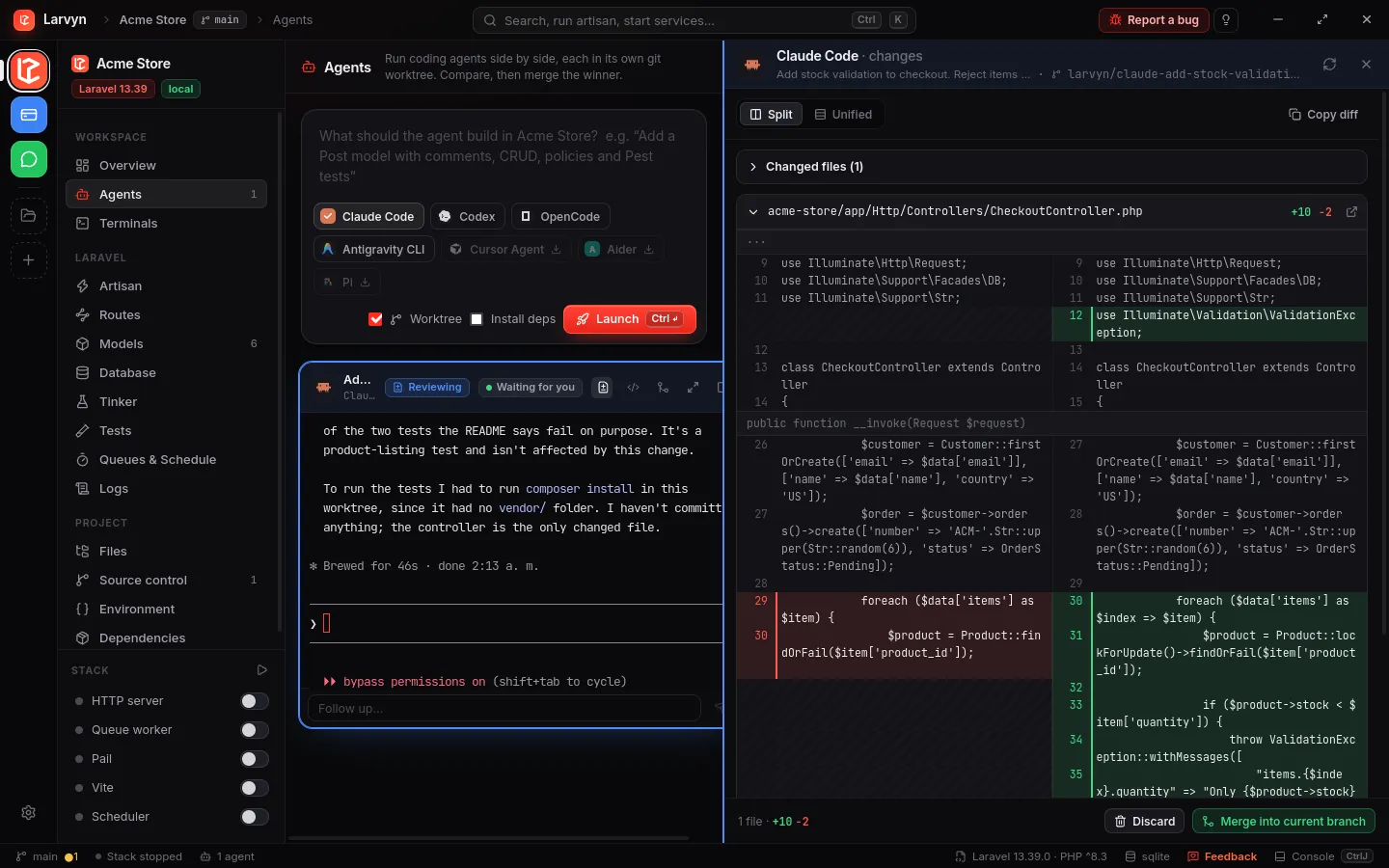
- Split or unified view. The panel switches to unified on its own when it’s too narrow to compare side by side.
- A list of changed files that jumps to each one. Each file can be folded, or opened in your editor at its first change.
- It follows the agent. While the agent works, the diff refreshes on its own.
- Merge or Discard from the panel’s footer, with the same confirmations as on the agent’s card.
The agent under review and the panel share a blue highlight, so it’s always clear whose code you’re reading. The panel is resizable and remembers its width.
Bring your own agents
Larvyn knows Claude Code, Codex, OpenCode and a few more out of the box. Now you can add your own in Settings → Agents → Add agent: give it a name, pick the built-in agent it works like, and set its command and environment.
For example, a Claude Code that keeps its conversations in its own config folder:
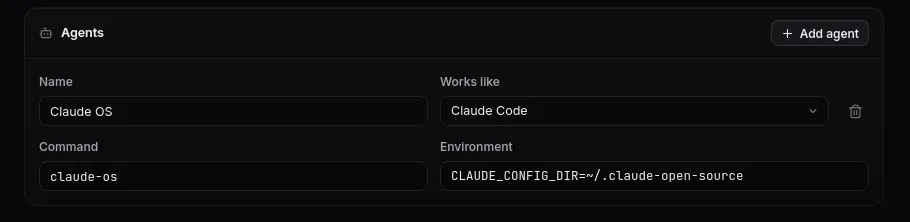
Your agent shows up everywhere the built-in ones do: the Agents picker, running several agents at once, the new-tab menu and the default agent. It starts, resumes after a restart and takes its first prompt exactly like the agent it’s based on.
Paste screenshots into your agents
Take a screenshot, click an agent’s terminal and paste (Ctrl+V, or ⌘V on a Mac). Claude Code, Codex and similar agents receive the image, just as they would in your usual terminal. Files copied in your file manager paste as their paths, and you can also drop files straight onto a terminal.
Paths are quoted so that nothing in a file name can run when the line is submitted. On Windows, where the terminal might be PowerShell, cmd.exe or Git Bash, Larvyn uses one rule that’s safe in all of them, and refuses the rare path that can’t be quoted safely.
Open your Laravel apps in one click
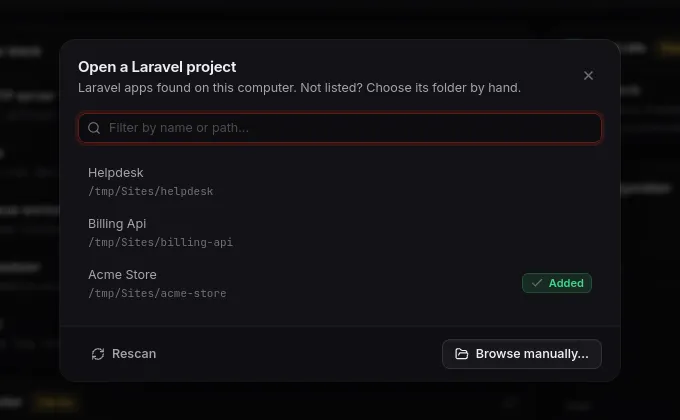
Adding a project no longer starts with a folder dialog. Larvyn looks for the Laravel apps on your computer, in your home folder and the usual web roots (including Laragon, XAMPP and WAMP on Windows), and lists them newest first, with a filter. Apps you already added are marked, and clicking one simply opens it. Browse manually… is still there for anything the scan misses.
Project icons and colors
Right-click a project in the rail, or click the pencil in the sidebar, to change its name, color and badge. By default the badge is the GitHub avatar of whoever owns the project’s repository, so your client work and your open source projects are easy to tell apart. You can also upload an image, or pick initials or one of 55 icons.
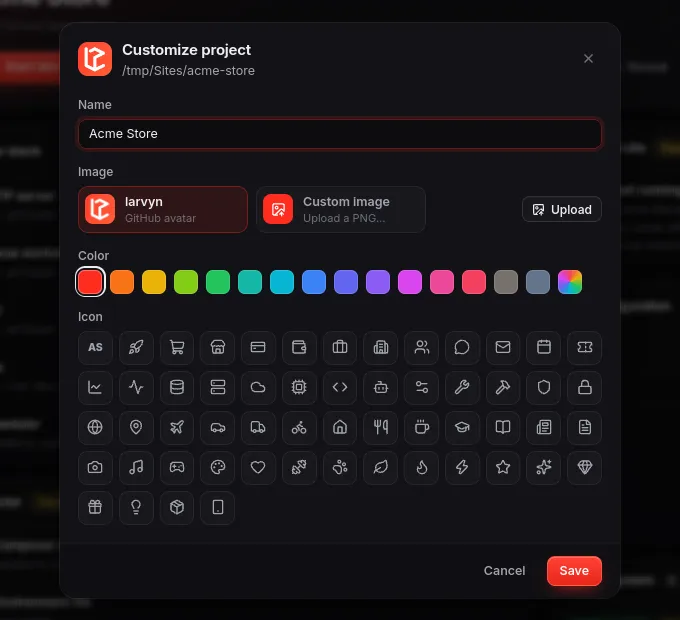
The file editor also highlights many more languages, and projects that aren’t Laravel no longer show the Laravel-only views.
Lighter terminals
Larvyn’s terminals now draw with the GPU. Agents redraw their screens many times a second, and with several of them on screen that used to keep the app busy. In our tests on Linux with eight agents running, Larvyn used about half the CPU it did before.
Agents that pick their conversation up after a restart also look cleaner: they reprint the conversation themselves, so Larvyn no longer shows it twice.
Plugins
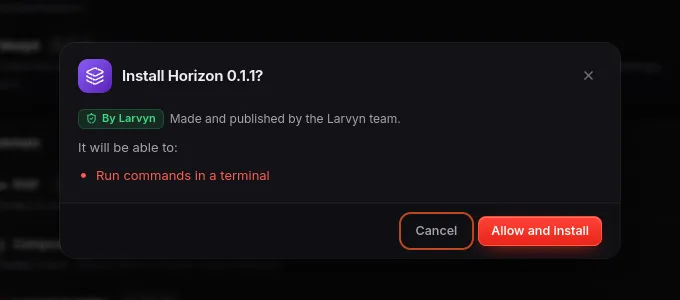
- Larvyn’s own plugins now carry a green By Larvyn badge. Other marketplace plugins show Marketplace, and plugins installed from a folder or a .zip show Unverified.
- The permission dialog shows the plugin’s icon.
- Updates keep a plugin you turned off, off. In beta.12, an update turned it back on.
Security fixes
We went through a security review and fixed what it found:
- Discard in Source control could delete the project’s parent folder if the project contained a file with a specially crafted name. It now only removes the exact file git reports, and never anything outside the repository.
- Saving
.env, clearing a log, and the files copied into a new agent worktree no longer follow symlinks out of the project. - The SQL console now asks before running any statement that writes, including writes hidden inside a
WITH …or after another statement. - Larvyn’s settings and log files are now readable only by you.
Get started
- Update Larvyn from inside the app, or install it from the download section.
- Open Agents, start an agent in a worktree, and click Review changes.
- Add your own agent in Settings → Agents.
Found a bug? Use Report a bug at the top of the app.